
Jacky can manage three kinds of time-based entries: countdown timers, reminders, and alarms. Create and manage them from the context menu or by voice — all entries persist across restarts.
Entry Types
Timer (Countdown)
Set a countdown with an optional label. When the time runs out, Jacky shows a notification and optionally speaks the duration.
- Quick presets are available in the context menu (e.g., 5 min, 10 min, 30 min).
- Custom durations can be set via the dialog or by voice (e.g., "set a timer for 3 minutes").
- An optional label lets you name the timer (e.g., "pasta", "laundry").
Reminder
Fire at a specific date and time with a custom message. Useful for one-off events:
- Pick any future date and time.
- Write a custom message that Jacky will display and speak when the reminder fires.
- If the chosen time has already passed today, Jacky automatically schedules it for the next day.
Alarm
Fire at a time of day, with optional daily repeat. Perfect for recurring events:
- Set a specific time of day (e.g., "08:00").
- Choose whether it repeats daily.
- Daily alarms auto-reschedule after firing — they will fire again the next day at the same time.
Creating Entries
Context Menu
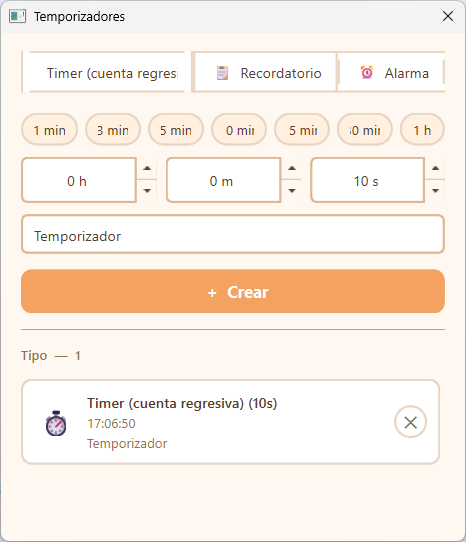
Right-click Jacky and go to ⏱️ Timers. The dialog lets you:
- Select the entry type (Timer, Reminder, or Alarm).
- Configure the time / duration.
- Optionally add a label or message.
- Click Add to create the entry.
Voice Commands
When LLM is enabled with tool-calling, you can create entries naturally through the push-to-talk hotkey:
- "Set a timer for 5 minutes"
- "Remind me to check the oven at 6:30 PM"
- "Wake me up every day at 7 AM"
Jacky uses native tool calling to parse your request and create the entry automatically.
Managing Entries
Active entries appear in the Timers dialog, sorted by their next fire time. You can:
- View all active timers, reminders, and alarms.
- Cancel any entry by clicking the cancel button next to it.
- See the remaining time for countdown timers in real time.
Maximum 20 entries: You can have up to 20 active entries at once. If the limit is reached, Jacky will let you know and you'll need to cancel an existing entry before creating a new one.
Persistence
All entries are saved to timers.json in Jacky's config directory (~/.jacky/). They survive app restarts and are reloaded automatically on startup.
Startup Catch-up
If Jacky was closed when an entry should have fired:
- Timers and reminders that expired within the last 10 minutes are fired immediately on startup.
- Entries that expired more than 10 minutes ago are discarded.
- Daily alarms auto-reschedule to the next future occurrence regardless of how long Jacky was offline.
This ensures you never miss a recent timer or reminder, while avoiding a flood of stale notifications after a long shutdown.
How It Works
Internally, Jacky checks all active entries every second using a lightweight tick timer. When an entry's fire time arrives:
- The
timer_firedsignal is emitted with the entry's kind, label, and extra context. - A system tray notification appears with the label or formatted time.
- Jacky speaks the notification using TTS (if not in silent mode):
- "Pomodoro — 25 minutes" for timers.
- "Reminder: Call dentist at 14:30" for reminders.
- "Alarm — 07:00" for alarms.
- Daily alarms are automatically rescheduled for the next day.
LLM troubleshooting tip: If you've enabled LLM tool calling, you can ask Jacky to list your active entries: "What timers do I have running?" or "Cancel all my timers."