
Silent Mode lets you keep Jacky on your desktop without hearing any sound. All speech bubbles, animations, and visual behaviors continue as normal — only the audio output is muted.
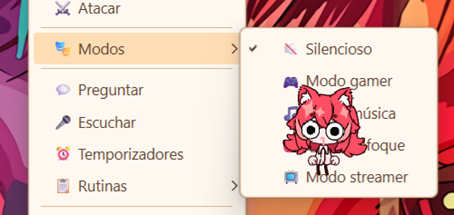
What does Silent Mode do?
When Silent Mode is active, Jacky stops playing any type of sound:
- Synthesized voice (TTS): Jacky's voice won't be heard when answering questions or making comments.
- Sound effects: All effects are muted, including peer greetings, Tamagochi alarms, item collection, and interaction sounds.
- Speech bubbles still appear: You can read everything Jacky says in his text bubbles, just without audio.
How to activate it?
You have several ways to toggle Silent Mode:
- From the system tray: Right-click Jacky's icon in the system tray and check Silent Mode.
- From settings: Open the settings window and enable the Silent Mode checkbox.
- Config file: Set
silent_mode: truein yourconfig.jsonfile.
When to use it?
Silent Mode is ideal when:
- You're in a meeting or video call and don't want audio interruptions.
- You're listening to music or watching videos and prefer Jacky not to compete with the sound.
- You work in a shared space (office, library, café) where you need discretion.
- You simply prefer Jacky's visual company without sound.
Automatic activation by other modes
An important thing to note: other operation modes (Gamer, Music, Focus, and Streamer) automatically enable Silent Mode temporarily to ensure Jacky doesn't interrupt you with sounds during those activities.
When you disable any of those modes, your original sound setting is automatically restored, so you don't have to worry about reconfiguring it manually.
Combine with other modes: You can have Silent Mode manually enabled alongside other modes. If you later disable the other mode, Silent Mode will stay on if you turned it on manually.